py-pdftools
Annotate, redact, label, impose and OCR PDF documents in one program
py-pdftools edits PDF documents. It annotates and redacts them, changes their page labels, headers, footers, watermarks and the order of their pages, imposes them for printing, and reads the text of their scanned pages. It has a window and a command line, both in English and in Spanish, and runs on Linux, Windows and macOS.
- Version
- 1.15.0 (24 November 2026)
- Programs
- a window (
py-pdftools-gui) and a command line (py-pdftools) - Interface
- English and Spanish
- Written in
- Python, with PyMuPDF, pikepdf, reportlab and PySide6 (Qt)
- Needs
- Python 3.14 or later (the AppImage and the packages bring what they need); Ghostscript for PDF/A and PDF/X, tesseract for OCR, pyHanko for digital signatures
- Licence
- GNU General Public License, version 3 or later
- Code
- Codeberg and GitHub
Where it comes from
py-pdftools grew out of six programs I wrote earlier, each for one kind of work on PDF documents. They had grown side by side, and they shared much: the translation of the interface, the configuration, the conversion to PDF/A and PDF/X, the packaging. The same document, besides, often went through several of them: annotated, then redacted, then given its page labels, then imposed for printing. So I brought them together in November 2026. Their code was copied into py-pdftools, which does not need them installed; each one stays as it was, with its own repository.
| Program | What it became in py-pdftools |
|---|---|
| py-annotate | the mode Annotate, and the window itself: its pages, thumbnails and panels |
| py-redact | the mode Redact |
| py-foliation | the mode Foliate, and the commands labels, view, header-footer, watermark and pages |
| py-imposition | the mode Impose, and the commands under impose |
| py-pdfocr | the mode OCR, and the command ocr |
| pdf-word-finder | Tools > Word index, and the command find-words |
A seventh, pdf2iso, came in whole: it makes the copies as PDF/A and PDF/X, and is no longer installed apart. Documents made with the earlier programs are read as before.
The modes
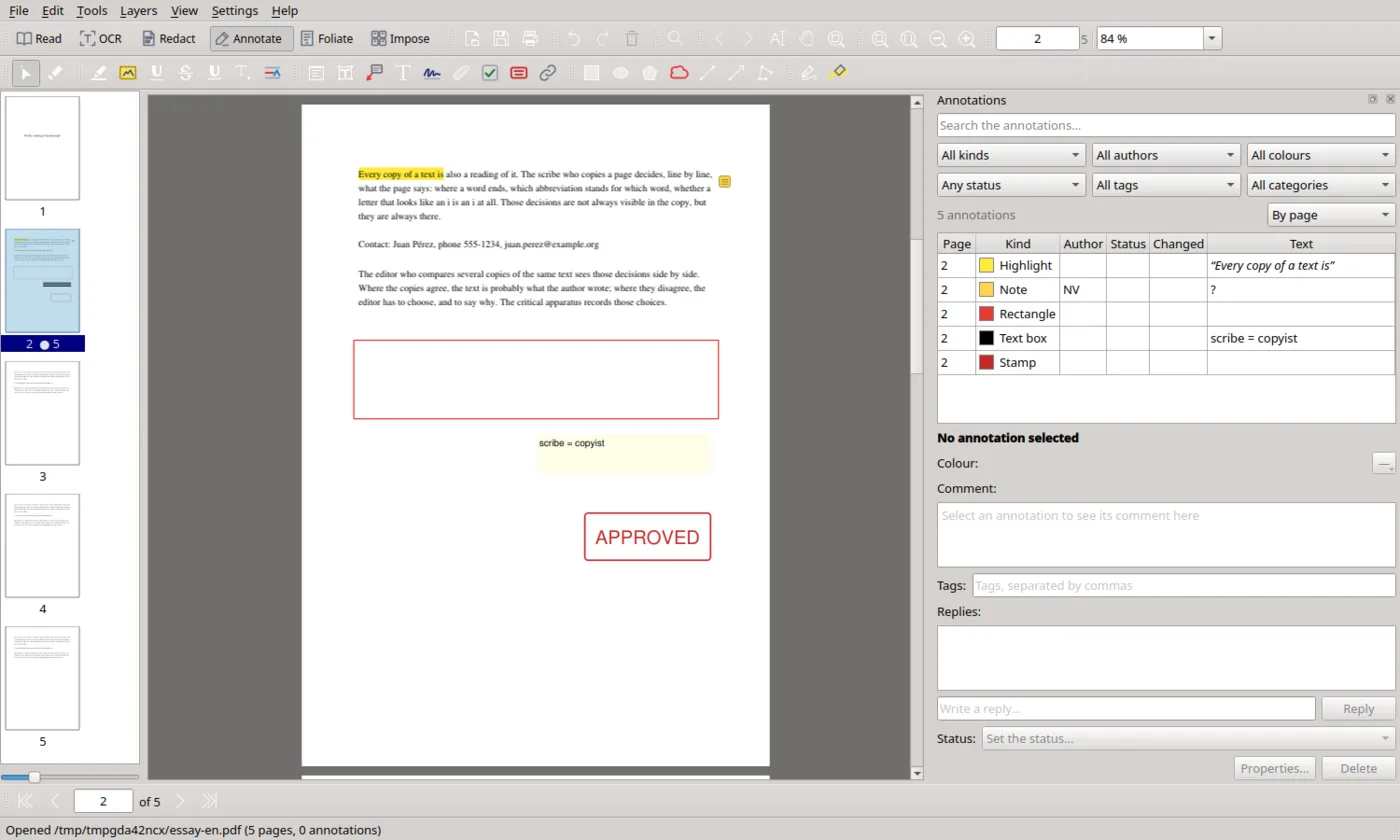
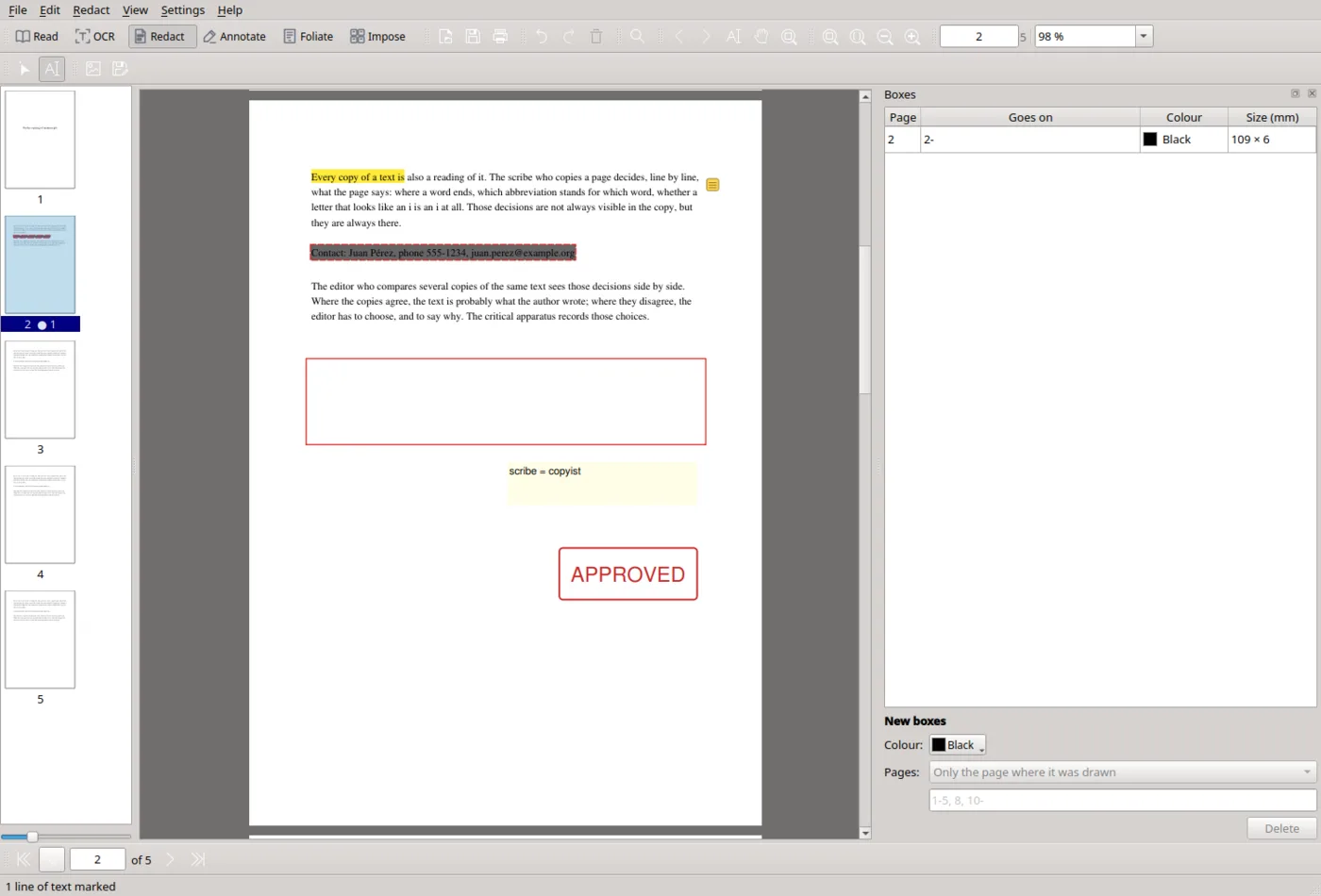
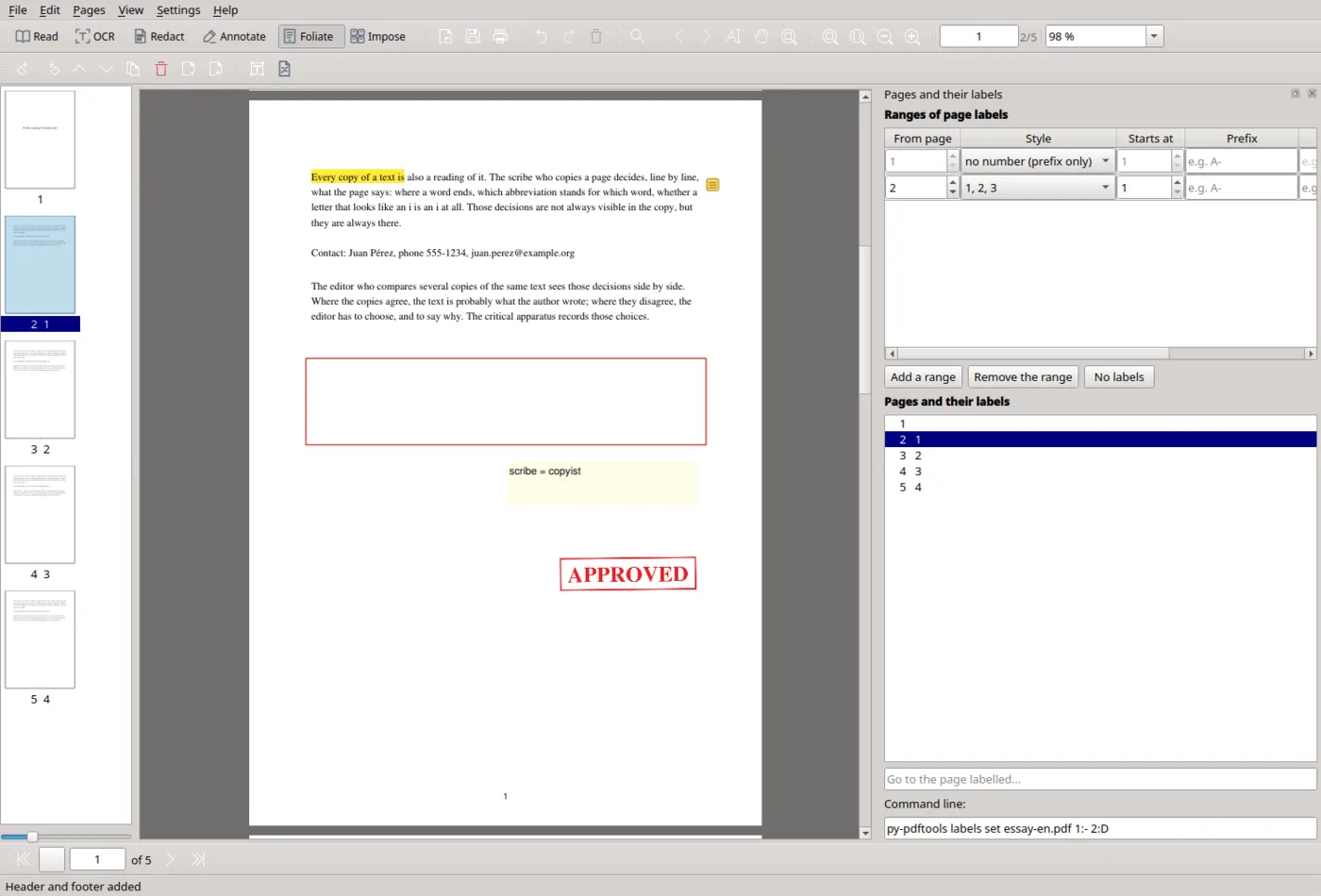
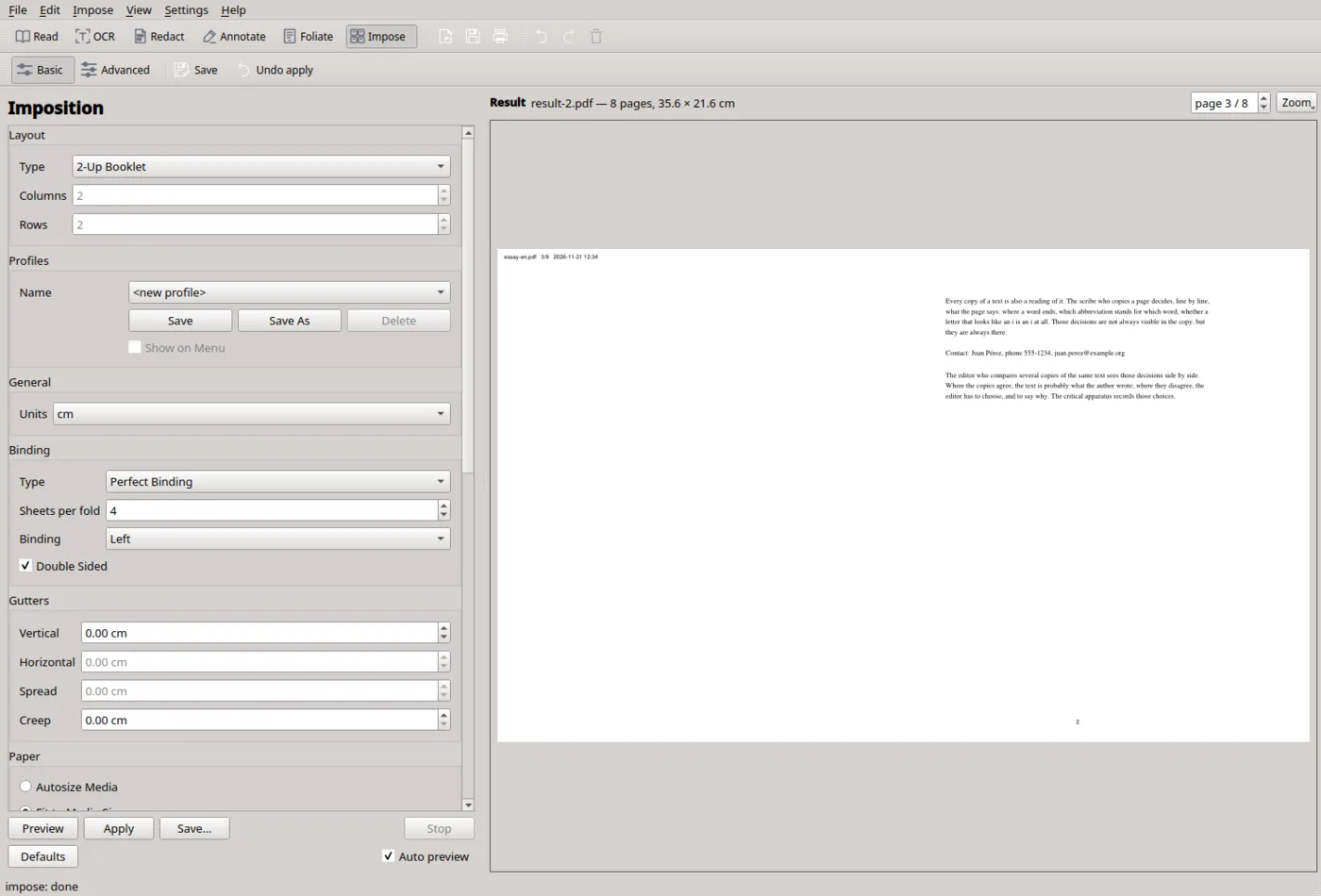
A bar at the top of the window (or Ctrl+1 to Ctrl+6) chooses what the window does. Each mode keeps its own arrangement of toolbars and panels, also the next time the program is opened, and there is one history for all of them: Undo goes back through everything done to the document, in any mode.
- Read: the pages and their thumbnails, with the tools to find, move through the pages and zoom.
- OCR: tesseract reads the text of the scanned pages, and it is written into the document, invisible, under the pictures of the pages, so that it can be found, copied and marked. The words tesseract was not sure of are shown beside their pictures, to be corrected first. Pages scanned sideways or upside down can be turned, and tesseract’s more accurate language models are downloaded from the program.
- Redact: boxes over what is to be removed, drawn by hand, put over text, or found by a search, with redaction codes. They are saved as the PDF’s own redaction marks, and nothing is removed until the redacted copy is written: a new file, never the one open, which is checked for any text still readable under a box. Find covered text looks for text that only seems redacted, still in the file under a black box or a picture.
- Annotate: highlights, notes, text boxes, shapes, drawings, links and stamps (the standard ones, and stamps of one’s own made of a picture or a page), written as ordinary PDF annotations, with a panel that lists, searches, filters and sorts them.
- Foliate: page labels (roman numbers, folios, prefixes), headers and footers with Bates numbers, watermarks, the view when the document is opened, and the order of the pages, all shown as soon as they are made.
- Impose: booklets, n-up, step and repeat, bleeds and crop marks, sequences and hot folders, previewed before they are saved or applied.
Beyond the six programs
py-pdftools also does much that none of the earlier programs did:
- fills forms, with their numbers and dates checked and their sums worked out without JavaScript, and exports and imports their values (JSON, CSV, XFDF, FDF);
- signs documents with a digital ID, visibly or not, and checks their signatures: whether each is intact and valid, who signed, and what changed after it;
- protects documents with passwords, encrypted with AES-256;
- edits bookmarks and links, and lists, opens and adds attached files;
- combines files, or some of their pages, makes PDFs of pictures, splits documents (every so many pages, at their bookmarks, or by size), and puts pages in order in a grid of large thumbnails;
- exports pages as pictures, the pictures of the document, or its text (Markdown, HTML or plain text), and makes smaller copies, or copies as another PDF version;
- compares two PDFs page by page, and runs the same steps (OCR, a header, a watermark, a smaller size, PDF/A) on many files at once;
- finds the pages where each word of a list appears, by their labels, as lines ready for the index of a book.
The window opens documents in tabs, can show two side by side, and has a quick search that finds at every letter typed. It can keep running in the background, with an icon in the tray, so that documents open at once.
The command line
The commands come in groups, and py-pdftools COMMAND -h explains each one:
py-pdftools labels set book.pdf 1:r 9:D -i      # i, ii ... from page 1; 1, 2 ... from page 9
py-pdftools header-footer book.pdf --footer-center 'Page $pagelabel' -i
py-pdftools watermark book.pdf --text DRAFT --opacity 30% -i
py-pdftools pages book.pdf --move 201-214 9 --delete LAST -i
py-pdftools impose booklet book.pdf -o booklet.pdf
py-pdftools ocr scan.pdf -l lat+spa --rotate --report
py-pdftools find-words book.pdf amor "re:virtu(s|tem|tis)" --sort
py-pdftools combine a.pdf b.pdf:2-5 -o all.pdf
py-pdftools export text book.pdf
py-pdftools pdf2iso is pdf2iso’s own command line, and py-pdftools completion bash|fish|zsh prints a completion script for the shell.
Installing it
Every release is on Codeberg and GitHub. Every file and every tag is signed with the same key, and each release has the checksums of its files.
| System | How |
|---|---|
| Fedora 45 and later | sudo dnf copr enable nivaca/py-pdftools, then sudo dnf install py-pdftools |
| Debian 12, Ubuntu 22.04 and later | the .deb of a release, or my signed APT repository, github.com/nivaca/apt |
| Any Linux | the AppImage, which brings its own Python, Qt and libraries |
| Linux, macOS, Windows | the installers in the source (install/install.sh, install\install.bat), with Python 3.14 or later |
| From the source | uv run py-pdftools-gui, with uv |
Documentation
- The user manual, in PDF, with pictures of the window and its dialogs: English, Spanish.
- The README: English, Spanish.
- How py-pdftools was made, and the changelog.
Versions
py-pdftools is young: its first version came out on 19 November 2026. The main steps since then; the changelog has every version.
- 0.1.0
19 Nov.py-annotate, py-redact, py-foliation and py-imposition in one window and one command line, in English and Spanish. - 0.2.0Five modes, in the order of the work on a document (Read, Redact, Annotate, Foliate, Impose), each with its own arrangement of the window; pdf2iso brought in.
- 0.4.0–1.0.0
20 Nov.OCR, from py-pdfocr, and then the mode OCR; text selection; running in the background. - 1.1.0–1.4.0
20 Nov.Bookmarks, links, tabs and a split view; finding covered text; passwords; combining files and PDFs of pictures; smaller copies, forms and digital signatures. - 1.5.0–1.7.0
21 Nov.The menus in groups; a quicker start, with the program started with the session; page navigation and the properties of a document. - 1.8.0The word index, from pdf-word-finder: the sixth program.
- 1.10.0–1.12.0
23 Nov.Attached files; a menu Tools, with the page sorter, steps run on several files and the history of changes; stamps of one's own; the search as you type. - 1.13.0A menu Find, with every search, in every mode.
- 1.14.0
24 Nov.Signing digitally, in three plain steps, with a digital ID made in the dialog if there is none. - 1.15.0
24 Nov.Every search as quick as the search as you type: each page read once, into one index of the document.